Annual report
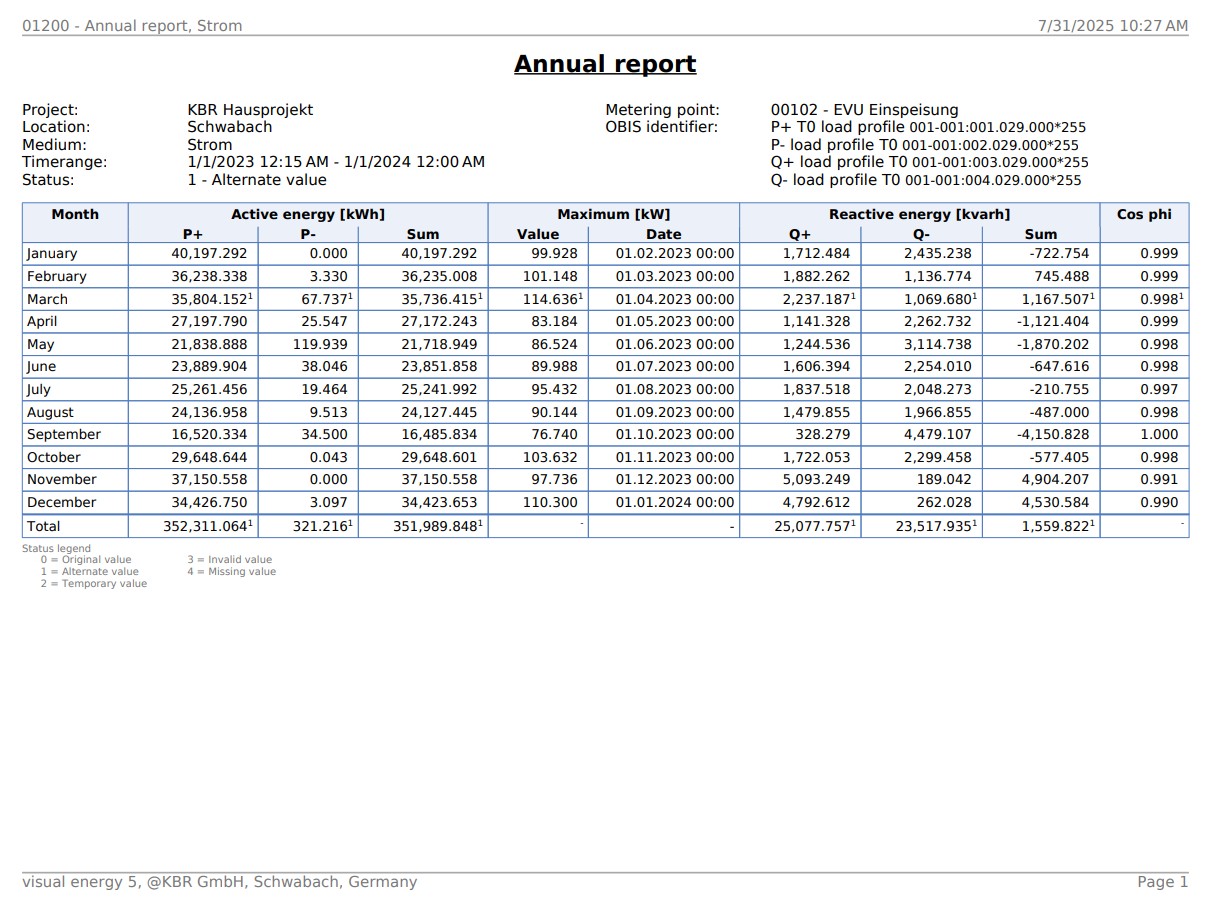
Report containing the monthly values of the most important measured variables for a metering point.
Where can I find this workflow? Evaluation section => Documents => + Add => Reports |
For electricity, the values of the measured variables P+ load profile T0, P- load profile T0, Q+ load profile T0 and Q- load profile T0 are determined on a monthly basis. In addition, the maximum value, together with its timestamp, and the cos phi value are calculated in each case.
For all other media, the four measured variables with the highest priority are determined from the metering point and aggregated on a monthly basis according to the defined function (Min, Max, Avg, Sum). The result is saved as a PDF file in an output directory and/or sent by email to a list of recipients.
Properties
Name/Designation/Title | A meaningful text entry. The designation is used for identification and search purposes and can be changed at any time. |
Time span | Defines the time span:
|
File name | Text – Specify the name of the output file (without a suffix such as .txt or .pdf). Note:In workflows that export multiple intervals to separate files during a run, use the “Automatic file name generation” option instead of specifying the file name manually. Otherwise, specifying a file name will result in the generated output file containing only the values from the last time interval. |
Overwrite document | Yes / No – Specify whether a document previously generated by this workflow should be overwritten in the same folder. |
Language | Select German / English – Sets the report language. |
Target folder | Selection – Select the visual energy folder in which to save the output file. |
Recipient | Text – Valid email addresses used by the system as recipient addresses. The individual addresses can be separated by semicolons. |
Completion trigger | Trigger – Specifies the trigger that is executed once the workflow has finished. |