Peak load report
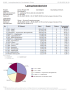
Special report for the medium “Electricity”. The peak load report can determine the maximum value for the “Total Utility Company” system metering point over a definable period. The largest consumers are listed in a table in descending order according to their peak load. The result is saved as a PDF file in an output directory and can be sent automatically by email to a list of recipients.
Where can I find this workflow? Evaluation section => Documents => + Add => Reports |
Properties
Name/Designation/Title | A meaningful text entry. The designation is used for identification and search purposes and can be changed at any time. |
Time span | Selection – Defines how the time span for the action is set.
|
Title / heading | Text – Specific text for the report title. |
Output limit |
|
File name | Text – Specify the name of the output file (without a suffix such as .txt or .pdf). Note:In workflows that export multiple intervals to separate files during a run, use the “Automatic file name generation” option instead of specifying the file name manually. Otherwise, specifying a file name will result in the generated output file containing only the values from the last time interval. |
Overwrite document | Yes / No – Specify whether a document previously generated by this workflow should be overwritten in the same folder. |
Language | Select German / English – Sets the report language. |
Target folder | Selection – Select the visual energy folder in which to save the output file. |
Email recipient list | Text – Specifies the recipients to whom the email should be sent. Recipients can be separated by semicolons. |
Completion trigger | Trigger – Specifies the trigger that is executed once the workflow has finished. |