Non-working day monitoring
This report can be used to monitor a measured variable at a metering point and detect any unusual consumption during periods when the facility is not in operation. If atypical consumption is detected, a notification is generated.
Where can I find this workflow? Data Collection section => Metering point => Measured variables => Automation |
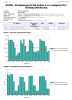
This workflow checks whether the measured variable on the previous day met the reduction target on a rest day (non-working day). The system automatically distinguishes between working days and non-working days using the measured variable assigned in the distribution diagram for the utility company’s inflow measurement. It would therefore be advisable to run this workflow once a day, after the utility company’s inflow measurement has been updated. If the workflow detects that there has been no significant reduction in daily consumption on a non-working day, a PDF report is generated. This report can be saved to a destination folder or sent to the specified email recipient. Alternatively, a notification can be generated. This workflow is currently available exclusively for the “Load Profile P+” measured variable.
Properties
Name/Designation/Title | A meaningful text entry. The designation is used for identification and search purposes and can be changed at any time. |
Determine the reference automatically |
|
Utility company data | Manual selection of the inflow measurement. |
Language | Select German / English – Sets the report language. |
File name | Text – Specify the name of the output file (without a suffix such as .txt or .pdf). Note:In workflows that export multiple intervals to separate files during a run, use the “Automatic file name generation” option instead of specifying the file name manually. Otherwise, specifying a file name will result in the generated output file containing only the values from the last time interval. |
Overwrite document | Yes / No – Specify whether a document previously generated by this workflow should be overwritten in the same folder. |
Target folder | Selection – Select the visual energy folder in which to save the output file. |
Email recipient list | Text – Specifies the recipients to whom the email should be sent. Recipients can be separated by semicolons. |
Force a report |
|
Notification text / title | Text – As informative a statement as possible. Those responsible for energy management should be able to gain an immediate overview of the issue from the notification text. |
Description | Text – Please provide as detailed a description as possible of the reason for the notification. It can also be edited by the user at any time and, for example, further information can be added. |
Priority | Selection – Priority of the notification. 0 (no priority) up to 6 (very high priority). |
Completion trigger | Trigger – Specifies the trigger that is executed once the workflow has finished. |