SEU list
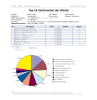
The “SEU List” report is used to identify the largest consumers. SEU stands for “significant energy use”. This allows a list of consumers to be generated at project, location or medium level, complete with measured values. The “Object List” workflow is used in the background. The workflow parameters are already predefined and allow for both sorting and limiting. In addition to the table, a pie chart is also output. The output can be in CSV and/or PDF format. The files can be saved to an output directory and/or sent by email to a list of recipients.
Where can I find this workflow? Evaluation section => Documents => + Add => Reports |
Properties
Name/Designation/Title | A meaningful text entry. The designation is used for identification and search purposes and can be changed at any time. |
Time span | Selection – Defines how the time span for the action is set.
|
Selection – Allows you to select a specific type of distribution structure. | |
Target OBIS | Selection – Choose the measured variable to be used in the workflow / report. |
Sorting | Selection – Allows you to sort the output by:
|
Output limit |
|
Document export as CSV | Yes / No – Optionally enables the export of a CSV file. |
Document output as PDF | Yes / No – Optionally enables the generation of a PDF file. |
Overwrite document | Yes / No – Specify whether a document previously generated by this workflow should be overwritten in the same folder. |
Target folder | Selection – Select the visual energy folder in which to save the output file. |
Email recipient list | Text – Specifies the recipients to whom the email should be sent. Recipients can be separated by semicolons. |
Completion trigger | Trigger – Specifies the trigger that is executed once the workflow has finished. |