Edit distribution
A distribution consists of one or more drawing objects. Each drawing object occupies one of the 11 columns on a drawing sheet. The drawing sheets are generated automatically. The arrangement of the drawing elements can be changed at a later stage.
The drawing objects in a distribution are defined by their properties, the functions Inflow, Outflow or Internal. When a metering point is assigned to a drawing object, that metering point is also assigned as an inflow or outflow.
CAUTION

Each of the drawing objects defines the balancing group function for the distribution.
Adding or deleting a drawing element with a metering point assignment therefore also changes the calculation rule for the system metering points. From the time of the change onwards, future data will be calculated in accordance with the newly established rule. If historical data is also to be recalculated, this must be initiated manually.
Add a drawing object
The  button can be used to select and add a drawing object from the master data.
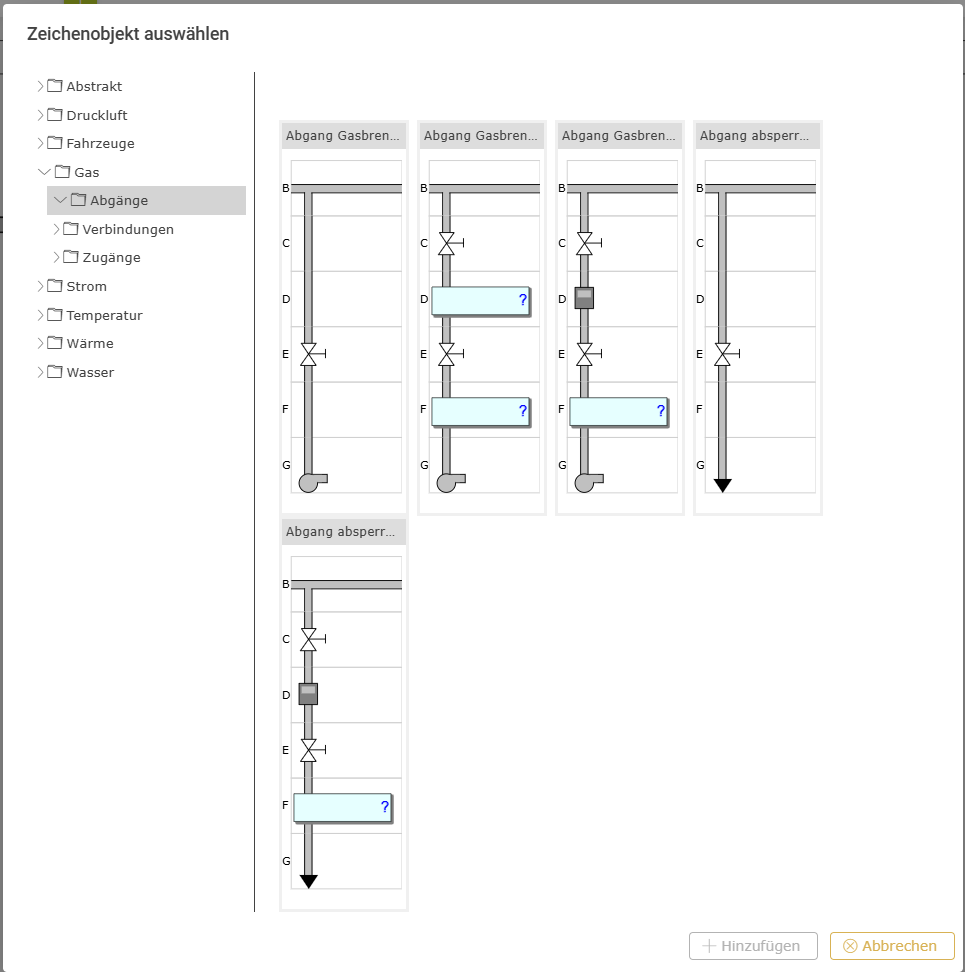
When making your selection, please ensure you choose the correct type (inflow/outflow/internal). You can also use the “Number” field to add a selected drawing object multiple times. The added drawing elements are appended to the end of the columns. This process can now be repeated until the distribution has been created. Close the dialog box by selecting Cancel.
Edit drawing element
Select the desired drawing element by clicking on the column header, then select “Edit drawing object”  in the toolbar
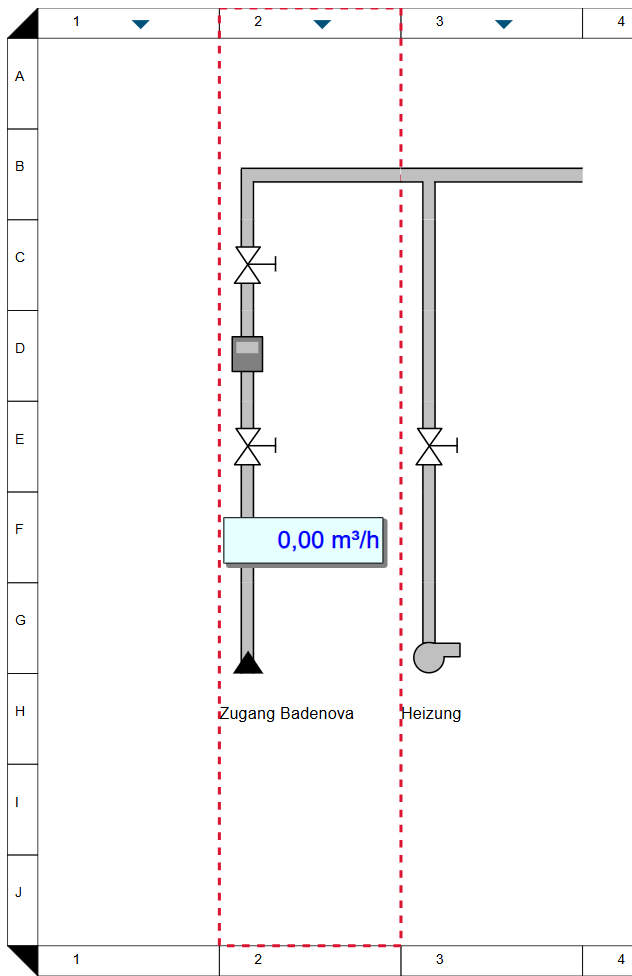
Properties
Pos | Number – Column position. Selecting a column allows you to move the drawing object. Every column must be filled in. Empty columns can only be created using empty drawing objects. |
Name/Designation/Title | A meaningful text entry. The designation is used for identification and search purposes and can be changed at any time. |
Field name | Text – Any string of characters. Appears above the drawing object in the distribution. Line breaks can be inserted using the | pipe character. However, the display is not restricted to the width of the drawing element and may also extend into the adjacent columns. |
Connection type | Selection – The connection type determines the function of the assigned metering point within the balancing group. Depending on the specified type of drawing element, one of the following connection types can be selected: Inflow type
Outflow type
|
Symbol I | Selection – Symbol to be displayed in row I. |
BMK | Text – Symbols may contain placeholders for BMK (equipment identification codes). These BMKs can be edited by the user here. |
Data points | Selection – Symbols may contain placeholders for online values. Busmaster data points can be assigned to these placeholders here. The selection of the data point is not validated. Any data points can be assigned. |
Assign a metering point
Select the desired drawing element by clicking on the column header, then select “Edit drawing object” in the toolbar
Metering point | Selection – Unassigned metering points are available for selection. Furthermore, the metering points must be of the Busmaster, File or Mobile type. Calculated metering points or allocation objects are not permitted here. Furthermore, only metering points for the relevant location and medium are displayed. Prerequisite: The drawing element must contain a placeholder for a metering point. |
Connections to other distributions
Select the desired drawing element by clicking on the column header, then select “Edit drawing object” in the toolbar
Target | Selection – Suitable available targets are offered for selection. An outflow of type “Distribution” can only be assigned to an inflow of type “Distribution”, and vice versa. The links to the distribution below the drawing object are created automatically. The entire supply structure for a medium is automatically generated from these connections. |
Duplicate a drawing element
Duplicating an existing drawing object within a distribution has the advantage that not only is there no need to select it from the master data, but all text – such as field names – is carried over and, where necessary, only needs to be amended.
Select the desired drawing element via the column header and then select the  “Duplicate” button.
Delete a drawing element from the distribution
Select the desired drawing element via the column header and then select the  “Delete” button.